MailBlast
MailBlast is a bulk email platform built for people who understand deliverability. Bring your own SMTP accounts — SendGrid, Amazon SES, cPanel hosting, Gmail app passwords, or anything else — and MailBlast handles rotation, monitoring, warm-up scheduling, and inbox analysis.
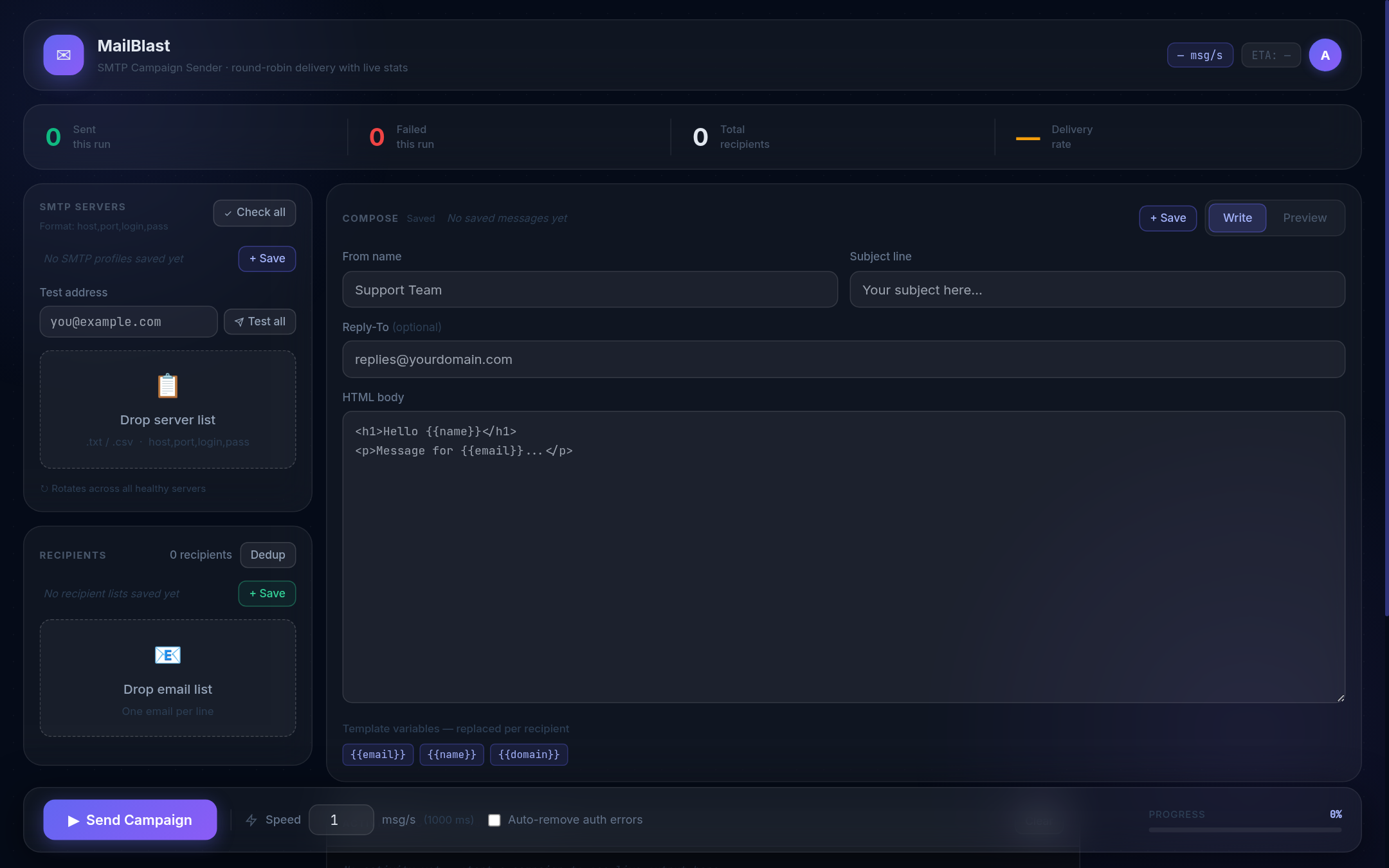
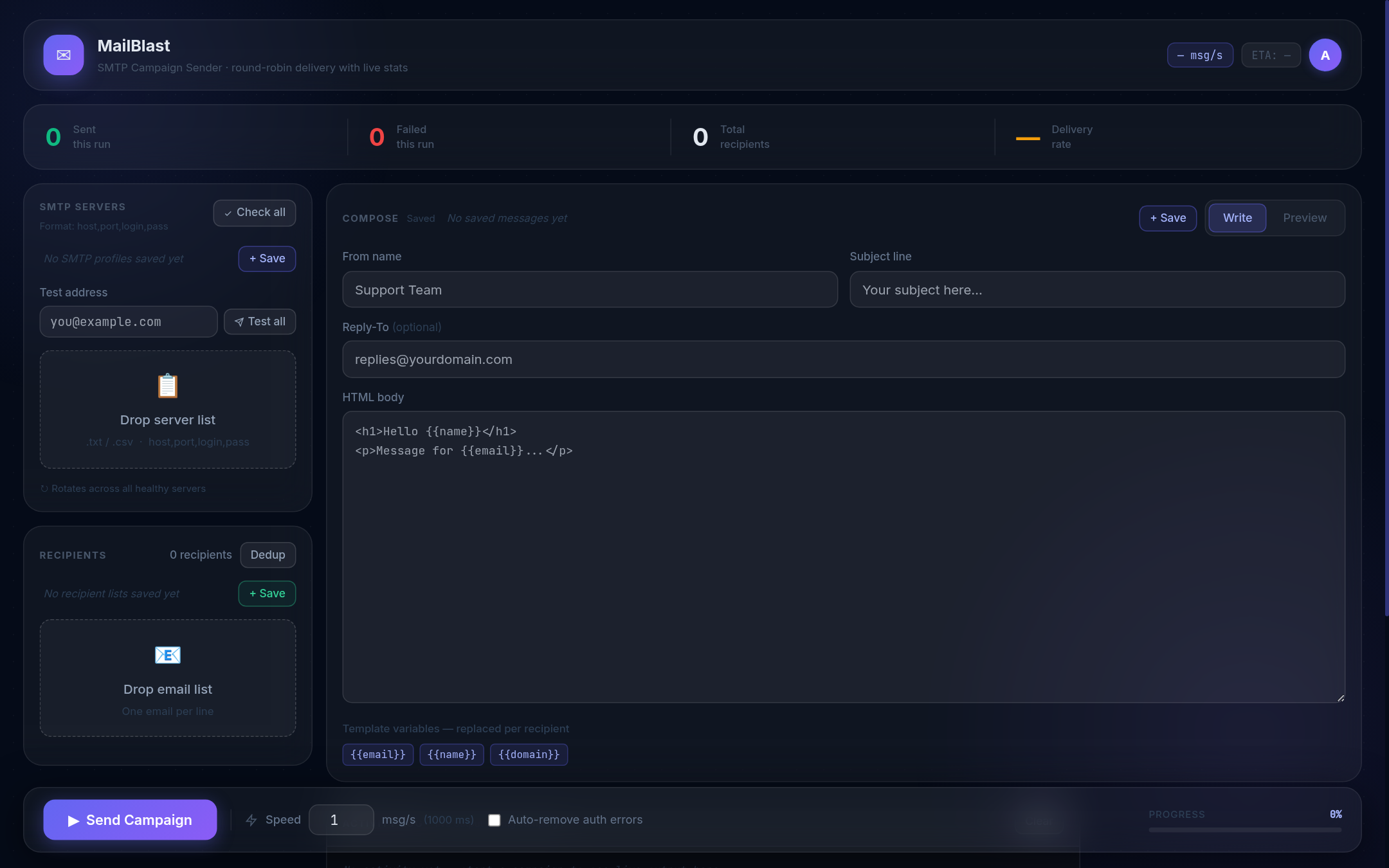
UI Overview
The interface is a single page divided into several areas:
┌──────────────────────────────────────────────────────────────┐
│  Header: logo · Speed · ETA · Plan chip · Avatar             │
├─────────────────┬────────────────────────────────────────────┤
│  Sent │ Failed  │  Campaign cards  (+ New · filter tabs)     │
│  Total │ Rate   │  ─────────────────────────────────────────  │
├─────────────────┤  Activity Log      │  Last Sent preview    │
│  SMTP SERVERS   │  (colour-coded     │  (sandboxed iframe)   │
│  (list + test)  │   per campaign)    │                       │
├─────────────────┤                                             │
│  RECIPIENTS     │                                             │
│  Library · Lists│                                             │
├─────────────────┴────────────────────────────────────────────┤
│  Controls: + New Campaign · Speed · Auto-remove · Prognosis  │
├──────────────────────────────────────────────────────────────┤
│  History & Stats (collapsible)                              │
└──────────────────────────────────────────────────────────────┘The plan chip (top-right) shows your current plan — Basic (amber, clickable → upgrade) or Pro (indigo). The avatar circle expands into a dropdown with account options, Telegram settings, and admin tools.
Authentication
All app features require an account. The auth card at /app has four views: Login, Register, Recover, and Token reveal.
Login
Enter your username and password. The eye icon toggles password visibility. Press Enter or click Sign in.
Self-Registration
Click No account? Create one → on the login screen.
- Choose a username — a real-time indicator shows availability as you type (green ✓ / red ✗)
- Set a password and confirm it
- Click Create account
After registration, a 64-character recovery token is displayed exactly once. Copy and store it securely — it is the only way to regain access if you forget your password. Click I've saved it to enter the app. New accounts start on the Basic plan.
Account Recovery
Click Forgot password? Use recovery token on the login screen. Enter your username and the 64-character token, then set a new password. Recovery tokens are permanent and never expire.
Plans: Basic vs Pro
| Feature | Basic | Pro |
|---|---|---|
| SMTP servers | 5 | Unlimited |
| Recipients per campaign | 25,000 | Unlimited |
| Active campaigns | 1 | Unlimited (parallel) |
| Smart server rotation | — | ✓ |
| Email Library | — | ✓ |
| Multi-campaign orchestrator | Limited | Full |
The plan chip in the top-right header shows your current tier. Basic users see an amber pulsing chip — clicking it opens the upgrade modal. Pro users see a static indigo chip.
When a Basic user tries to use a Pro feature (Library, second campaign, smart rotation), the upgrade modal opens automatically.
Upgrade to Pro
Click the amber BASIC chip in the header, or trigger a Pro-gated feature — the upgrade modal opens.
- View 1 — Feature pitch: Lists everything in Pro with the price ($79 one-time).
- Click Upgrade to Pro — a CryptoPay invoice is generated instantly.
- View 2 — Payment: Click Open Payment Page to pay. The modal polls every 4 seconds. A countdown shows the invoice expiry (30 minutes).
- View 3 — Success: Confirmed. Session upgrades immediately — no logout needed.
Campaigns
MailBlast runs multiple campaigns in parallel — each is an independent job with its own recipients, message, and progress. All campaigns share the same live SMTP pool and SMTP health state (cooldowns, weights).
Creating a campaign
Click + New Campaign in the controls bar (or + New above the card list). The job editor modal opens.
Job editor
The editor has three tabs:
| Tab | What you set |
|---|---|
| Compose | From Name, Reply-To, Subject, HTML body (with syntax highlighting), plain text override, live preview iframe |
| Recipients | Paste addresses or drag-drop a file; Library picker (Pro); Dedup; Trim / Save rest as new list |
| Settings | Campaign name, colour (used for card border & activity log), Priority %, Smart rotation (Pro) |
Starting, pausing, stopping
| Button | Action |
|---|---|
| ▶ Start | Begin sending from the current position (resumes a paused job) |
| ⏸ Pause | Suspend after the current email — position is saved, resume anytime |
| ⏹ Stop | Stop and finalise — saves sent/failed counts to history |
Global controls above the card list: Pause All / Stop All.
Priority %
Each campaign has a priority percentage (1–100%). Higher priority = shorter delay between sends = more emails per second. Adjust via the slider on each campaign card — takes effect on the very next send cycle with no restart.
A total allocation indicator below the cards shows the sum of all running priorities. >100% shows an amber warning; <100% notes available idle capacity.
SMTP Servers
Loading servers
Paste your SMTP credentials into the left textarea or drag-and-drop a .txt / .csv file onto the drop zone. One server per line:
host,port,login,passwordExamples:
smtp.gmail.com,587,user@gmail.com,app-password
mail.privateemail.com,465,sender@domain.com,pass123
smtp.sendgrid.net,587,apikey,SG.xxxxxxxxxxxx465 uses implicit TLS (SMTPS). All other ports use STARTTLS. Duplicates are removed automatically.
Testing & verifying servers
| Button | What it does |
|---|---|
| Test all | Sends a test email from every server to the address in the "Test address" field. |
| ▶ (per-row) | Sends a test email from that specific server only. |
| Verify | Checks authentication on all servers without sending email. Marks each ✓ / ✗ / auth-fail. |
After verifying, a Remove bad button appears to strip auth-failed servers in one click. Run Verify before every campaign — dead credentials slow down sends and inflate failure counts.
Hot pool management
You can add or remove SMTP servers while campaigns are running — no pause or restart needed.
| Action | How |
|---|---|
| Add live | Paste new SMTP lines into the [+ Add Live] textarea and confirm — servers join the pool immediately |
| Remove live | Click the [✕] button on any server row in the live pool view |
Rate-limit cooldown system — each server gets up to 3 strikes before a temporary ban:
- Strike 1 → 5-minute cooldown
- Strike 2 → 5-minute cooldown
- Strike 3 → 1-hour ban
Recipients
Paste email addresses into the right textarea or drag-and-drop a file. One address per line. Duplicates are removed automatically (case-insensitive).
24-hour dedup check
Click Check dupes to highlight addresses already sent to in the last 24 hours. A Remove dupes button strips them. MailBlast tracks every sent address for 7 days to prevent re-sending to the same contacts across back-to-back campaigns.
Cut & trim
| Button | Action |
|---|---|
| Trim | Removes the first N lines from the textarea. Use this to resume a partial campaign. |
| Save rest as new list | Saves lines N onward as a new named saved list. |
Email Library Pro
The Email Library is a persistent contact database built into your account. Access it via the Library button in the Recipients panel (Pro users only).
Features
- Bulk import — upload large
.txt/.csvfiles; contacts are stored permanently - Filter — by domain, age (last seen), and other metadata
- Pick N — choose exactly how many contacts to load for a campaign
- Job locking — contacts loaded into a running campaign are locked and hidden from all other campaign pickers until the job finishes or stops, preventing duplicate sends across parallel campaigns
Composing a Message
| Field | Notes |
|---|---|
| From name | Display name shown to recipients. Optional. |
| Reply-To | Address replies go to. Optional but recommended — many spam filters flag emails with no reply path. |
| Subject line | Required. Supports template variables. |
| HTML body | Full HTML email. A plain-text version is auto-generated. |
Template variables
Replaced per recipient at send time:
| Variable | Replaced with |
|---|---|
{{email}} | The full email address |
{{name}} | The part before @ |
{{domain}} | The part after @ |
Example subject: Hey {{name}}, special offer for {{domain}} users
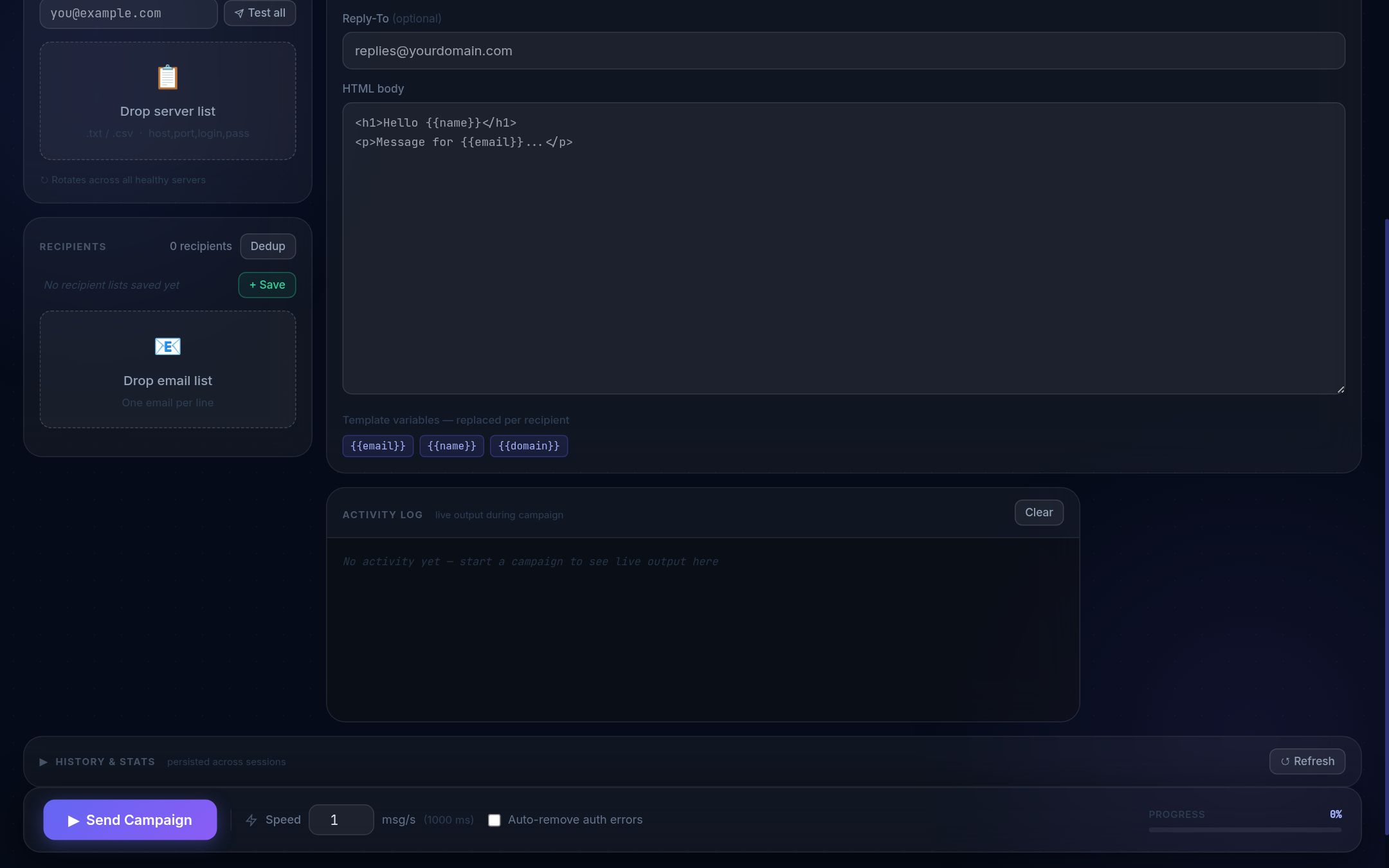
Preview tab
Switch to the Preview tab to render the HTML in an iframe. Enter any test address in the "Preview as email" field to see how variables resolve for that specific recipient.
Live Monitoring
The stats strip below the controls shows real-time counts:
- Sent (green) · Failed (red) · Total
- Delivery rate percentage
- Live speed badge — actual messages/second over the last 10 seconds
- ETA badge — estimated time remaining
A card for each active SMTP server shows its individual sent/failed counts and delivery rate, updated after every email. The Activity log below is a live timestamped feed of every send attempt and event — including auto-removed servers and rate-limit warnings.
Campaign History
Click ▾ History & Stats to expand the section. Each row shows: Date, Subject, Sent ✓, Failed ✗, Opens, Clicks, Rate %, Duration, Server count.
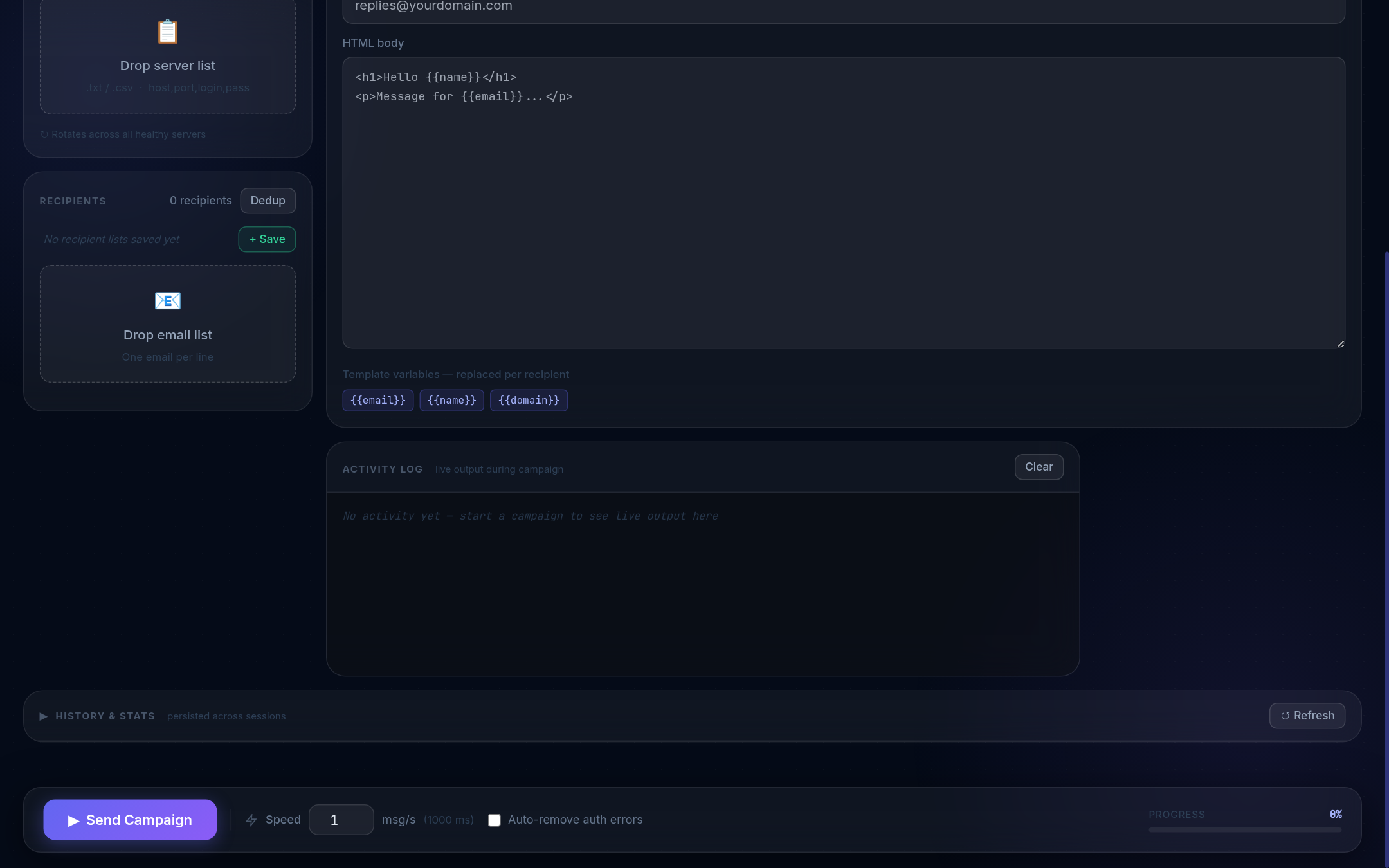
Click any row to expand it and see the per-server breakdown and action buttons:
- ↺ Load into compose — reloads subject, from name, and reply-to
- ⬇ Sent (N) / ⬇ Failed (N) — download address lists
- 🗑 Delete — removes the campaign from history
Stats charts
- Daily activity — bar chart of sent/failed per day over the last 14 days
- Top servers — horizontal bar chart of all-time sent per SMTP account
Saved Profiles
Three profile strips sit above the SMTP, Recipient, and Message areas. All profiles are persisted in your account and survive sessions.
| Profile type | Stores |
|---|---|
| SMTP profiles | Server list — shows count badge, download, delete |
| Recipient lists | Email list — shows address count, preview first 50, download |
| Message templates | From name + subject + HTML body together |
Click a profile chip to preview its contents before loading. Keeping multiple named SMTP profiles is especially useful when rotating between different batches of servers or working across different projects.
Telegram Bot Integration
MailBlast can send campaign notifications to a Telegram chat and accept control commands during a running campaign.
Setup
- Create a bot via @BotFather and copy the token.
- Get your chat ID (send a message to the bot, then check
https://api.telegram.org/bot<TOKEN>/getUpdates). - Open the Telegram option from the avatar menu, enter the token and chat ID, and click Test connection.
Notifications
| Event | Default |
|---|---|
| Campaign start | On |
| Progress updates | On (every 25%) |
| Campaign complete | On |
| Server removal errors | Off |
Bot commands
| Command | Description |
|---|---|
/status · /s | Live progress bar, speed, ETA |
/pause | Pause the campaign |
/resume | Resume a paused campaign |
/stop | Stop the campaign |
/stats | All-time statistics |
/help | Command list |
Inbox Rate Prognosis
Inbox Rate Prognosis is MailBlast's 7-factor pre-send analysis. It evaluates each loaded SMTP server across authentication, reputation, and history signals and produces a single score predicting whether your emails will reach the inbox — before you send a single message.
Click Prognosis in the action bar to run it. The panel expands below the SMTP card and shows results per server plus a combined overall score.
The 7 factors
| Factor | Weight | What it checks |
|---|---|---|
| SPF | 20 pts | Is the server's sending IP listed as authorized in the domain's SPF DNS record? |
| DMARC | 15 pts | Does a DMARC policy exist for the domain? Any policy scores full points. |
| DKIM | 15 pts | Probes 16 common DKIM selectors — is a valid public key published in DNS? |
| IP / RBL | 20 pts | Is the server IP listed on Spamhaus, Barracuda, SpamCop, or SORBS? |
| rDNS / PTR | 10 pts | Does the IP have a reverse DNS record pointing back to a hostname? |
| Domain age | 10 pts | How old is the sending domain? Checked via RDAP/WHOIS. Newer domains score lower. |
| Send history | 10 pts | MailBlast's own delivery record for this server across your past campaigns. |
Score thresholds
Multi-server campaigns
When multiple servers are loaded, Prognosis shows a combined overall score (weighted by server count) plus a per-server breakdown. A single listed or misconfigured server can drag your combined score down — use the breakdown to identify and remove the weak link before starting.
RBL Blacklist Check
The RBL button in the action bar runs a quick blacklist check against all loaded SMTP server IPs — faster and more focused than the full Prognosis.
MailBlast checks four major networks in parallel:
| Network | Notes |
|---|---|
| Spamhaus (SBL, XBL, DBL) | Most widely used. A listing here causes rejections at the majority of corporate and consumer mail servers. |
| Barracuda | Common in enterprise environments. Particularly strict with new sending IPs. |
| SpamCop | Driven by recipient spam reports. Can have false positives with opt-in lists if enough recipients hit "spam" instead of "unsubscribe". |
| SORBS | Comprehensive list covering multiple categories (spam, relay abuse, dialup ranges). |
Results show a PASS / LISTED badge per server and per network. A single listing on Spamhaus is enough to cause deliverability failure for the majority of your recipients — treat it as a blocker, not a warning.
If you're listed
- For transactional providers (SendGrid, SES): their IP pools are actively managed — a listing is unusual and typically resolves within hours. Contact provider support.
- For cPanel / shared hosting IPs: the IP is shared with other users. If a neighbour on the same host got listed, you're affected too. Submit a delisting request (each network has a form) or rotate to a different server set.
- For personal accounts (Gmail, Outlook): listings are rare but mean the account is flagged for high-volume sending. Stop sending from it immediately and let it cool for at least 48 hours.
DNS Authentication: SPF, DKIM & DMARC
SPF, DKIM, and DMARC are three DNS records that prove to receiving mail servers that your email is legitimate. Without all three correctly configured, emails will land in spam or be rejected outright — regardless of content quality, list quality, or SMTP reputation.
These aren't optional. Gmail and Yahoo made DMARC a requirement in 2024 for senders above 5,000 messages/day. Most enterprise mail servers have enforced SPF and DKIM for years.
SPF — Sender Policy Framework
SPF is a DNS TXT record on your domain that lists which mail servers are allowed to send email on its behalf. When a receiving server gets your email, it checks the sender IP against your SPF record. If the IP isn't listed, the email fails SPF.
# Example SPF record (DNS TXT on yourdomain.com)
v=spf1 include:sendgrid.net include:smtp.example.com ~allinclude:sendgrid.net— authorizes all SendGrid IPs~all— soft fail: emails from unlisted IPs are marked suspicious but delivered. Use-all(hard fail) once your sending is fully configured.
include: value to add.
DKIM — DomainKeys Identified Mail
DKIM adds a cryptographic signature to every outgoing email. The private key is on the sending mail server; the matching public key is published as a DNS TXT record on your domain. Receiving servers verify the signature to confirm the email wasn't altered in transit.
DKIM is configured on the SMTP provider's side — they generate the key pair and give you a DNS record to add. For example, SendGrid will tell you to add:
# DNS TXT record
s1._domainkey.yourdomain.com → v=DKIM1; k=rsa; p=MIGfMA0...
MailBlast's Prognosis probes 16 common DKIM selector names (default, google, mail, k1, s1, s2, and others) to check if any valid key is published. A hit means your DKIM is active and verifiable.
DMARC — Domain-based Message Authentication
DMARC ties SPF and DKIM together. It tells receiving servers what to do with emails that fail those checks, and it gives you a reporting address where you receive abuse reports.
# Minimum DMARC record (DNS TXT on _dmarc.yourdomain.com)
v=DMARC1; p=none; rua=mailto:dmarc@yourdomain.com
DMARC policies:
| Policy | Effect on fail | When to use |
|---|---|---|
p=none | Deliver anyway, log to rua address | Start here — monitor without blocking |
p=quarantine | Send to spam folder | After confirming SPF/DKIM are stable |
p=reject | Reject the email | Full enforcement — use when confident |
p=none and a rua reporting address. After a week of reports showing SPF and DKIM passing consistently, move to p=quarantine, then p=reject.
Checking your setup with Prognosis
The fastest way to verify all three records for your sending servers is to load them into MailBlast and click Prognosis. The SPF, DMARC, and DKIM factor rows show exactly which checks passed or failed per server, with no need for external tools.
Warm-up Guide
When a fresh SMTP account sends a large volume of email suddenly, ISPs treat it as spam by default. The IP has no sending history, no reputation, and no track record — it looks identical to a freshly-provisioned spammer server.
Warm-up is the process of gradually increasing your daily send volume over days or weeks. You start at a small, consistent daily number, then increase it by a fixed percentage each day. ISPs see a slow, steady, growing pattern — the same pattern a real business follows — and assign the IP a positive reputation based on that history.
Why it matters most with low-quality SMTPs
Premium providers like SendGrid and Amazon SES manage shared IP pools with millions of legitimate sends per day behind them. You benefit from that accumulated reputation the moment you send your first email.
Budget SMTPs — Gmail app passwords, cPanel shared hosting, Outlook personal accounts, new offshore mailboxes — have zero reputation. Every email is judged purely on that IP's history. Skip warm-up and you'll typically see:
- Rate-limiting after the first 50–100 emails from a fresh account
- ISP blocks triggered by velocity spikes (a sudden jump from 0 to 500/day)
- Account suspension within hours on Gmail and Outlook
- IP landing on Spamhaus within days, blacklisting the account permanently
How MailBlast handles warm-up
The Warm-up Scheduler chip in the action bar generates a day-by-day ramping plan. Enter the account type (domain age / freshness), your target total volume, and your start date. The scheduler produces a table showing the daily send cap to follow.
Follow the plan. Do not exceed the daily cap even if the account looks healthy — ISPs track departures from an established pattern and respond with throttling or blocks.
Typical ramp schedules by tier
| Account type | Week 1 daily start | Ramp rate | Reach full speed |
|---|---|---|---|
| Premium (SES, SendGrid) | 2,000 / day | +50% / day | ~10 days |
| Mid-tier (cPanel, Brevo) | 100 / day | +25% / day | ~3 weeks |
| Budget (Gmail, Outlook) | 20 / day | +15% / day | ~6 weeks |
Warm-up strategy with Smart Rotation
The most effective approach when working with budget SMTPs is to run many fresh accounts simultaneously, each within its own warm-up cap, and let Smart Rotation distribute the load across all of them. Ten Gmail accounts in week 2 of warm-up (cap: ~80/day each) gives you 800 sends/day total — safely, without triggering any one account.
Save each batch as an SMTP Profile as it completes warm-up. As accounts mature, their daily caps grow. Keep a spreadsheet or note tracking which profile is in what week of warm-up. MailBlast's per-server history charts (in History & Stats) help you see how many sends each server has accumulated.
Smart Rotation & Failure Handling
When multiple SMTP servers are loaded, MailBlast distributes sends in round-robin order — each server handles one email in turn before the cycle repeats.
Why rotation matters
Using 10 servers instead of 1 doesn't just multiply throughput. It insulates the campaign:
- If one server hits its daily sending cap and starts deferring, the others carry on
- If one server gets rate-limited mid-campaign, the load automatically distributes to the rest
- Per-server counts stay lower, making each account look like a normal human sender rather than a blasting machine
- With Auto-remove enabled, suspended accounts are evicted without stopping the campaign
Auto-remove auth errors
Enable Auto-remove auth errors in the controls bar before starting. When a server returns an authentication failure (535/534 — meaning the credentials are revoked or the account suspended), it is immediately pulled from the active pool. The campaign continues on the remaining healthy servers. Failed credentials are logged in the activity feed so you can review what was dropped.
Resuming after failures
- After stopping, click ⬇ Failed in History to download the failed address list.
- Replace burned-out servers with a fresh SMTP Profile.
- Paste the failed list back into Recipients and resume.
Alternatively, use the Trim feature on the Recipients panel: load your original list and trim off the count already shown as "Sent" in the History row.
Open & Click Tracking
MailBlast can track when recipients open your emails and click links inside them. Tracking data appears in Campaign History and the per-server breakdown.
How open tracking works
A 1×1 transparent tracking pixel is embedded at the bottom of the HTML body before sending. When the recipient's email client loads images, it fetches this pixel from MailBlast's servers — logging an open event with the timestamp and campaign ID.
How click tracking works
All href links in your HTML body are rewritten before sending to pass through MailBlast's redirect endpoint. When a recipient clicks a link, MailBlast logs the click event, then immediately redirects them to the original destination URL.
Where to see the data
- History table — Opens and Clicks columns show campaign totals
- Expanded history row — per-server breakdown: which server's sends generated the most engagement
Privacy compliance
If you're sending to EU recipients under GDPR, your emails should disclose that tracking pixels and redirected links are in use. Include an unsubscribe link in every email — MailBlast supports RFC 8058 one-click unsubscribe headers, which Gmail and Apple Mail surface as a native "Unsubscribe" button.
Send Window & Scheduling
Send Window lets you restrict campaign delivery to specific hours and days of the week. MailBlast pauses automatically when outside the configured window and resumes when it opens.
Why send windows matter
Two reasons:
- ISP behavior — Sending at 3 AM from a personal or budget account looks like automated spam. ISPs flag unusual sending hours, especially from accounts with short history. Restricting to business hours makes sending patterns look human.
- Open rates — Emails that arrive during business hours on weekdays get significantly higher open rates than late-night or weekend sends. Delivering into an inbox right when someone opens their email client increases the chance of immediate engagement.
Recommended windows by SMTP tier
| Account type | Recommended window | Days |
|---|---|---|
| Premium (SES, SendGrid) | Any — provider manages throttle | Any |
| Mid-tier (cPanel, Brevo) | 9 AM – 6 PM | Mon–Fri |
| Budget (Gmail, Outlook) | 9 AM – 5 PM | Mon–Fri only |
SMTP Format Reference
host,port,login,password- Fields are comma-separated, one server per line
- Whitespace around commas is trimmed
- Lines with fewer than 4 fields are ignored
- Port
465→ implicit TLS (SMTPS); all others → STARTTLS - Comments and blank lines are ignored
Common provider examples
# Gmail (requires 2FA + App Password)
smtp.gmail.com,587,you@gmail.com,xxxx-xxxx-xxxx-xxxx

# Outlook / Hotmail
smtp-mail.outlook.com,587,you@outlook.com,yourpassword

# SendGrid
smtp.sendgrid.net,587,apikey,SG.your_api_key_here

# Amazon SES
email-smtp.us-east-1.amazonaws.com,587,AKIAIOSFODNN7,your+ses+key

# Brevo (formerly Sendinblue)
smtp-relay.brevo.com,587,your@email.com,your_smtp_key

# cPanel / private hosting
mail.yourdomain.com,465,sender@yourdomain.com,password
User Management
MailBlast uses self-registration — anyone can create an account at /app (unless the admin disables registration via ALLOW_REGISTRATION=false in the server .env). Each user's campaigns, profiles, library, and Telegram settings are completely isolated.
Roles
| Role | Can do |
|---|---|
| admin | Full access — always treated as Pro, can manage all users, change plans, view purchases |
| user | Send campaigns, manage own profiles, Telegram settings. Cannot see other users' data. |
Admin panel
Open the avatar dropdown → Admin (visible to admins only). From here you can:
- View all registered users and their current plan
- Change any user's plan: Basic ↔ Pro
- View purchase / invoice history
Recovery tokens
Recovery tokens are generated at registration and shown once. They are stored hashed in the database and are permanent — they never expire. Users use them at the login screen ("Forgot password? Use recovery token") to set a new password.
SMTP Account Guide
Not all SMTP accounts are equal. Your choice of provider determines sending limits, deliverability ceiling, and the right MailBlast settings to use. This guide breaks them into three tiers and shows exactly how to configure MailBlast for each.
Quick Comparison
| Feature | Premium | Mid-Tier | Budget |
|---|---|---|---|
| Inbox placement (cold list) | 90–98% | 65–85% | 30–60% |
| Daily sending limit | 100k–unlimited | 500–50k | 100–2k |
| Warm-up required | Rarely | New accounts | Always |
| Smart rotation value | Medium | High | Critical |
| Tracking support | Full | Full | Partial |
| Cost per 10k emails | $1–5 | $0.10–1 | $0.01–0.10 |
Premium SMTPs
Transactional email services with dedicated IP infrastructure, pre-built reputation, and high deliverability guarantees. Ideal for campaigns where inbox placement is non-negotiable.
How to leverage MailBlast with Premium SMTPs
- Load multiple API keys as separate SMTP lines — each SendGrid or SES API key is a separate server entry. Smart Rotation will distribute across all of them.
- Enable open & click tracking — premium accounts don't rate-limit aggressively, so tracking is safe to enable at full volume.
- Use Send Window for timezone targeting — configure 9 AM–5 PM in the recipient's timezone to maximise open rates.
- Set From name + Reply-To carefully — premium providers track complaint rates. Keep your complaint rate below 0.1% (Gmail's enforced threshold) with a clear brand name and a monitored reply-to inbox.
- Use Warm-up for new subdomains — even with SES, sending 100k on day 1 from a fresh subdomain triggers reputation filters. Ramp over 2 weeks.
Mid-Tier SMTPs
Shared hosting mail servers, budget ESPs, and mid-range providers. Good deliverability when configured correctly, but shared IP pools mean your neighbours' behaviour affects you. Requires careful warm-up and rate management.
How to leverage MailBlast with Mid-Tier SMTPs
- Load 10–30 cPanel accounts simultaneously — at 1 account doing 200 emails/day, 20 accounts do 4,000. Smart Rotation spreads load automatically and backs off from rate-limited servers.
- Set speed to 1–3 msg/s per campaign — shared IP pools get flagged at full blast speed. A steady pace avoids honeypots and rate triggers.
- Use the Send Window to avoid off-hours sends — many shared hosts flag unusual sending patterns at 2 AM. Restrict to business hours.
- Enable Auto-remove auth errors — mid-tier accounts get suspended without notice. Auto-remove keeps campaigns running on survivors.
- Use Warm-up for new accounts — follow the scheduler plan. Never exceed the daily cap on a new account.
- Save server lists as SMTP Profiles — mid-tier accounts die regularly. Keep named profiles for each batch so you can swap in a fresh set quickly.
Budget SMTPs
Personal email accounts and offshore bulk providers. The lowest cost per email, but the highest management overhead. Expect more failures, stricter limits, and lower inbox placement on cold lists. Works well for targeted campaigns to warm audiences.
How to leverage MailBlast with Budget SMTPs
- You need quantity — load 20+ accounts — at 500 emails/day per Gmail account, 20 accounts hit 10k/day. Smart Rotation tracks which accounts are succeeding and shifts volume away from rate-limited ones automatically.
- Keep speed at 0.3–0.5 msg/s — personal accounts flag unusual velocity. A slow drip mimics human sending behavior.
- Warm up every new account individually — use the Warm-up Scheduler. For Gmail/Outlook, start at 20/day and ramp at 15%/day. Never skip ahead.
- Use Send Window aggressively — restrict to Mon–Fri, 9 AM–5 PM in recipients' timezone. Weekend and late-night sends from personal accounts get flagged immediately.
- Enable Auto-remove auth errors — budget accounts get suspended constantly. Auto-remove ensures the campaign keeps moving on remaining live accounts.
- Save and rotate server lists as SMTP Profiles — when a set burns out, load the next profile and continue. Name profiles with their warm-up stage (e.g. "Gmail batch 2 — week 4").
Recommended Settings by Tier — Full Reference
| Setting | Premium | Mid-Tier | Budget |
|---|---|---|---|
| Default speed (msg/s) | 5–20 | 1–3 | 0.3–0.5 |
| Min accounts to load | 1–3 | 5–15 | 20–50 |
| Smart rotation | On | On — essential | On — critical |
| Auto-remove bad | Optional | On | On — always |
| Send window | Optional | 9AM–6PM weekdays | 9AM–5PM weekdays |
| Warm-up required | New subdomains only | All new accounts | Every account, always |
| Warm-up start volume | 500–2,000/day | 50–200/day | 10–50/day |
| Warm-up ramp rate | +50%/day | +25–30%/day | +15–20%/day |
| Open & click tracking | Enable | Enable | Enable (monitor closely) |
| RBL check frequency | Weekly | Before each campaign | Before every campaign |
| Telegram alerts | Optional | Recommended | Essential |